

wp:paragraph
If you’ve ever searched for something specific on Google, only to be bombarded with irrelevant trending topics like celebrity controversies, you’re not alone.
/wp:paragraph
wp:paragraph
The good news is that turning off Google’s trending searches is a straightforward process, whether you’re using a desktop or mobile device.
/wp:paragraph
wp:image {“id”:44939,”width”:”666px”,”height”:”auto”,”sizeSlug”:”full”,”linkDestination”:”none”,”align”:”center”}
/wp:image
wp:heading
How to Disable Trending Searches on Google?
/wp:heading
wp:paragraph
While Google’s trending searches can be useful for keyword research, they can be distracting if you’re looking for something particular.
/wp:paragraph
wp:paragraph
Follow the steps below based on the device and browser you’re using to turn them off.
/wp:paragraph
wp:heading {“level”:3}
Chrome Browser on PC
/wp:heading
wp:list {“ordered”:true}
- wp:list-item
- Navigate to the Google homepage (Google.com) and log in to your Google account.
- Scroll down to the very bottom of the page. You should see a “Settings” link there; click on it.
- A dropdown menu will appear. From this menu, select “Search settings.”
- On the Search Settings page, scroll down until you locate the section titled “Autocomplete with Trending Searches.” Within this section, find the option that says “Do not show popular searches” and toggle it off.
- Finally, click the “Save” button to apply your changes.
/wp:list-item
wp:list-item
/wp:list-item
wp:list-item
/wp:list-item
wp:list-item
/wp:list-item
wp:list-item
/wp:list-item
/wp:list
wp:paragraph
That’s all! No more trending searches in your results.
/wp:paragraph
wp:heading {“level”:3}
Chrome on a Mac
/wp:heading
wp:list {“ordered”:true}
- wp:list-item
- Open your browser and head to Google.com.
- Scroll to the bottom and click Settings.
- Select Search Settings from the menu.
- Under Autocomplete with Trending Searches, choose Do not show popular searches.
- This will stop Google from showing trending search results.
/wp:list-item
wp:list-item
/wp:list-item
wp:list-item
/wp:list-item
wp:list-item
/wp:list-item
wp:list-item
/wp:list-item
/wp:list
wp:heading {“level”:3}
Chrome on Android
/wp:heading
wp:paragraph
Turning off trending searches on your Android device is just as easy. Here’s how:
/wp:paragraph
wp:list {“ordered”:true}
- wp:list-item
- Open your browser.
- Tap the hamburger menu (three horizontal lines) in the top-left corner.
- Select Search Settings.
- Scroll down and toggle on Do not show popular searches.
- Hit Save, and you’re good to go!
/wp:list-item
wp:list-item
/wp:list-item
wp:list-item
/wp:list-item
wp:list-item
/wp:list-item
wp:list-item
/wp:list-item
/wp:list
wp:heading {“level”:3}
Chrome on iPhone
/wp:heading
wp:paragraph
To turn off trending searches in the Chrome app on an iPhone:
/wp:paragraph
wp:list {“ordered”:true}
- wp:list-item
- Open the Chrome app.
- Tap your profile icon in the top-right corner.
- Go to Settings > General.
- Disable Autocomplete with Trending Searches.
- Save your changes.
/wp:list-item
wp:list-item
/wp:list-item
wp:list-item
/wp:list-item
wp:list-item
/wp:list-item
wp:list-item
/wp:list-item
/wp:list
wp:heading {“level”:3}
Safari on iPhone
/wp:heading
wp:paragraph
If you’re using Safari on an iPhone, here’s how to disable trending searches:
/wp:paragraph
wp:list {“ordered”:true}
- wp:list-item
- Open Safari and go to Google.com.
- Tap the hamburger menu in the top-left corner.
- Select Settings.
- Scroll down to Autocomplete with Trending Searches.
- Toggle Do Not Show Popular Searches.
/wp:list-item
wp:list-item
/wp:list-item
wp:list-item
/wp:list-item
wp:list-item
/wp:list-item
wp:list-item
/wp:list-item
/wp:list
wp:heading {“level”:3}
Google App
/wp:heading
wp:paragraph
To turn off trending searches in the Google app:
/wp:paragraph
wp:list {“ordered”:true}
- wp:list-item
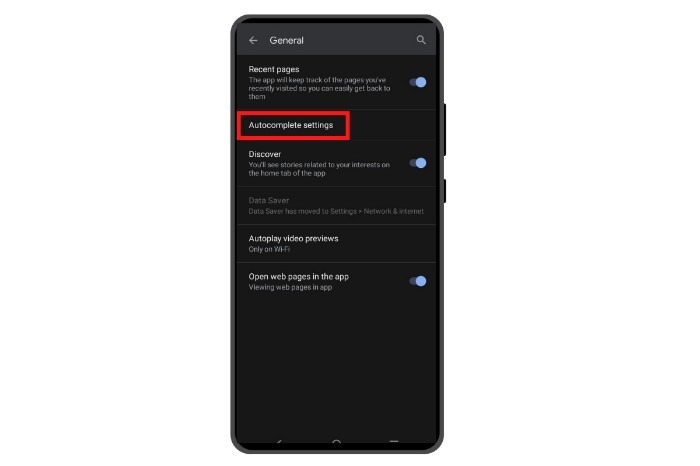
- Open the Google app and tap your profile icon in the top-right corner.
- Tap Settings.
- Go to Autocomplete Settings.
- Toggle off Autocomplete with Trending Searches.
/wp:list-item
wp:list-item
/wp:list-item
wp:list-item
/wp:list-item
wp:list-item
/wp:list-item
/wp:list
wp:image {“id”:44940,”width”:”642px”,”height”:”auto”,”sizeSlug”:”full”,”linkDestination”:”none”,”align”:”center”}
/wp:image
wp:heading
Troubleshooting Tips
/wp:heading
wp:paragraph
If you’re still seeing trending searches despite making changes, here are a few steps you can take to resolve the issue:
/wp:paragraph
wp:heading {“level”:3}
Restart Your Browser
/wp:heading
wp:paragraph
Restarting your browser ensures that the changes are applied. Close all browser windows, reopen them, and check if the issue persists.
/wp:paragraph
wp:heading {“level”:3}
Block Search Cookies
/wp:heading
wp:paragraph
You can block search cookies to remove trending searches:
/wp:paragraph
wp:list {“ordered”:true}
- wp:list-item
- Open your browser and go to chrome://settings/syncSetup?search=autocomplete+searches+and+urls.
- Disable Autocomplete Searches and URLs.
- Restart your browser.
/wp:list-item
wp:list-item
/wp:list-item
wp:list-item
/wp:list-item
/wp:list
wp:heading {“level”:3}
Clear Cache and Update Chrome
/wp:heading
wp:paragraph
Make sure your browser is up-to-date by clearing the cache and updating Chrome:
/wp:paragraph
wp:list {“ordered”:true}
- wp:list-item
- Open Chrome and click the three dots in the top-right corner.
- Go to Settings > Privacy and Security > Clear Browsing Data.
- Select the time range and hit Clear Data.
- Then go to Settings > About Chrome and click Update Google Chrome if available.
/wp:list-item
wp:list-item
/wp:list-item
wp:list-item
/wp:list-item
wp:list-item
/wp:list-item
/wp:list
wp:heading {“level”:3}
Reset Chrome Settings
/wp:heading
wp:paragraph
If you still can’t remove trending searches, reset Chrome to its default settings:
/wp:paragraph
wp:list {“ordered”:true}
- wp:list-item
- Type chrome://settings/reset in the address bar.
- Click to reset your settings, and the issue should be resolved.
/wp:list-item
wp:list-item
/wp:list-item
/wp:list
wp:heading
FAQs
/wp:heading
wp:heading {“level”:3}
Why Am I Seeing Trending Searches?
/wp:heading
wp:paragraph
Google’s algorithm tracks current popular topics across the web, and these trending searches appear based on the latest news and social media buzz.
/wp:paragraph
wp:paragraph
While helpful for staying updated, it can show irrelevant results if you’re looking for something specific.
/wp:paragraph
wp:heading {“level”:3}
Are Trending Searches the Same as Autocomplete?
/wp:heading
wp:paragraph
No, trending searches and autocomplete are different. Autocomplete predicts what you might be typing based on common search phrases, while trending searches highlight current hot topics.
/wp:paragraph
wp:paragraph
Autocomplete is more predictive, whereas trending searches show what’s popular right now.
/wp:paragraph
