

wp:paragraph
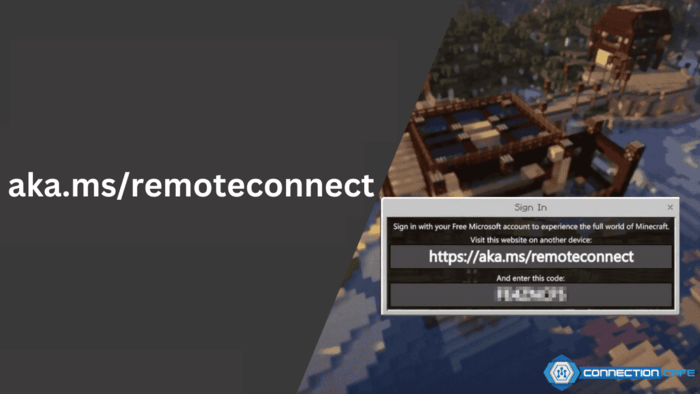
aka.ms/remoteconnect is a web page that lets players connect their Microsoft profile to multiple gaming systems, including Xbox, PlayStation, Nintendo Switch, and computers.
/wp:paragraph
wp:paragraph
This feature allows users to join multiplayer sessions across different platforms.
/wp:paragraph
wp:paragraph
To activate crossplay, individuals must sign in using a Microsoft profile and input a unique verification code from their gaming console at https://aka.ms/remoteconnect.
/wp:paragraph
wp:image {“id”:44516,”width”:”650px”,”height”:”auto”,”sizeSlug”:”full”,”linkDestination”:”none”,”align”:”center”}
/wp:image
wp:heading
Steps to Activate Crossplay via aka.ms/remoteconnect
/wp:heading
wp:paragraph
To play Minecraft with friends on various devices, follow these instructions:
/wp:paragraph
wp:list {“ordered”:true}
- wp:list-item
- Launch Minecraft on your gaming system.
- Select Sign in with Microsoft Account.
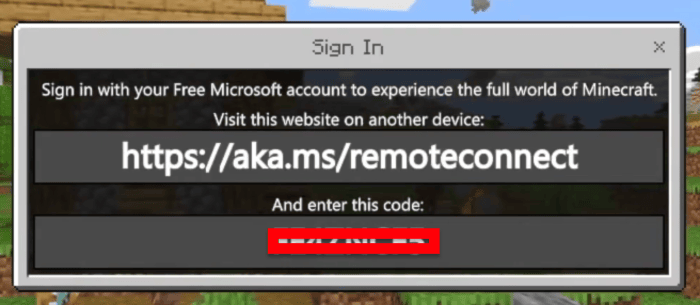
- A unique eight-character code will be displayed.
- On another device, visit https://aka.ms/remoteconnect.
- Enter the code shown on your screen.
- Press Next and finalize the authentication process.
/wp:list-item
wp:list-item
/wp:list-item
wp:list-item
/wp:list-item
wp:list-item
/wp:list-item
wp:list-item
/wp:list-item
wp:list-item
/wp:list-item
/wp:list
wp:paragraph
Once linked, your Microsoft profile enables you to engage in multiplayer gaming across different platforms.
/wp:paragraph
wp:heading
Resolving aka.ms/remoteconnect Issues
/wp:heading
wp:table
| Problem | Fix |
| Incorrect Microsoft account | Ensure that you use the same account previously associated with your game. |
| Internet connectivity issues | Restart your device and confirm your network is stable. |
| Server outages | Wait a while and attempt to connect again. |
| Login failure | Sign out and log back in using correct credentials. |
/wp:table
wp:paragraph
If errors persist, go to aka.ms/remoteconnect and follow the given guidelines.
/wp:paragraph
wp:heading
Linking PlayStation to a Microsoft Profile
/wp:heading
wp:paragraph
When associating a PS4 or PS5 with a Microsoft account, consider the following:
/wp:paragraph
wp:list
- wp:list-item
- Once linked, the Microsoft profile cannot be modified.
/wp:list-item
/wp:list
wp:paragraph
/wp:paragraph
wp:list
- wp:list-item
- Connecting the wrong account may require resetting game progress to fix the issue.
/wp:list-item
/wp:list
wp:heading
Is aka.ms/remoteconnect Trustworthy?
/wp:heading
wp:image {“id”:44517,”width”:”628px”,”height”:”auto”,”sizeSlug”:”full”,”linkDestination”:”none”,”align”:”center”}
/wp:image
wp:paragraph
Yes, aka.ms/remoteconnect is an official Microsoft portal built to support Minecraft multiplayer access.
/wp:paragraph
wp:paragraph
Ensure you sign in with the appropriate Microsoft profile to prevent login difficulties.
/wp:paragraph
wp:heading
Need Assistance with aka.ms/remoteconnect?
/wp:heading
wp:paragraph
If problems persist, seek help from Minecraft Customer Support by following these steps:
/wp:paragraph
wp:list {“ordered”:true}
- wp:list-item
- Go to the Minecraft Help Center.
- Pick your gaming platform.
- Share your contact information and describe the problem.
- Submit the form to request assistance.
/wp:list-item
wp:list-item
/wp:list-item
wp:list-item
/wp:list-item
wp:list-item
/wp:list-item
/wp:list
wp:heading
Conclusion
/wp:heading
wp:paragraph
By utilizing aka.ms/remoteconnect, players can experience Minecraft multiplayer gaming across different devices.
/wp:paragraph
wp:paragraph
If any complications arise, follow the troubleshooting tips above or contact Minecraft Customer Support for further guidance.
/wp:paragraph
