

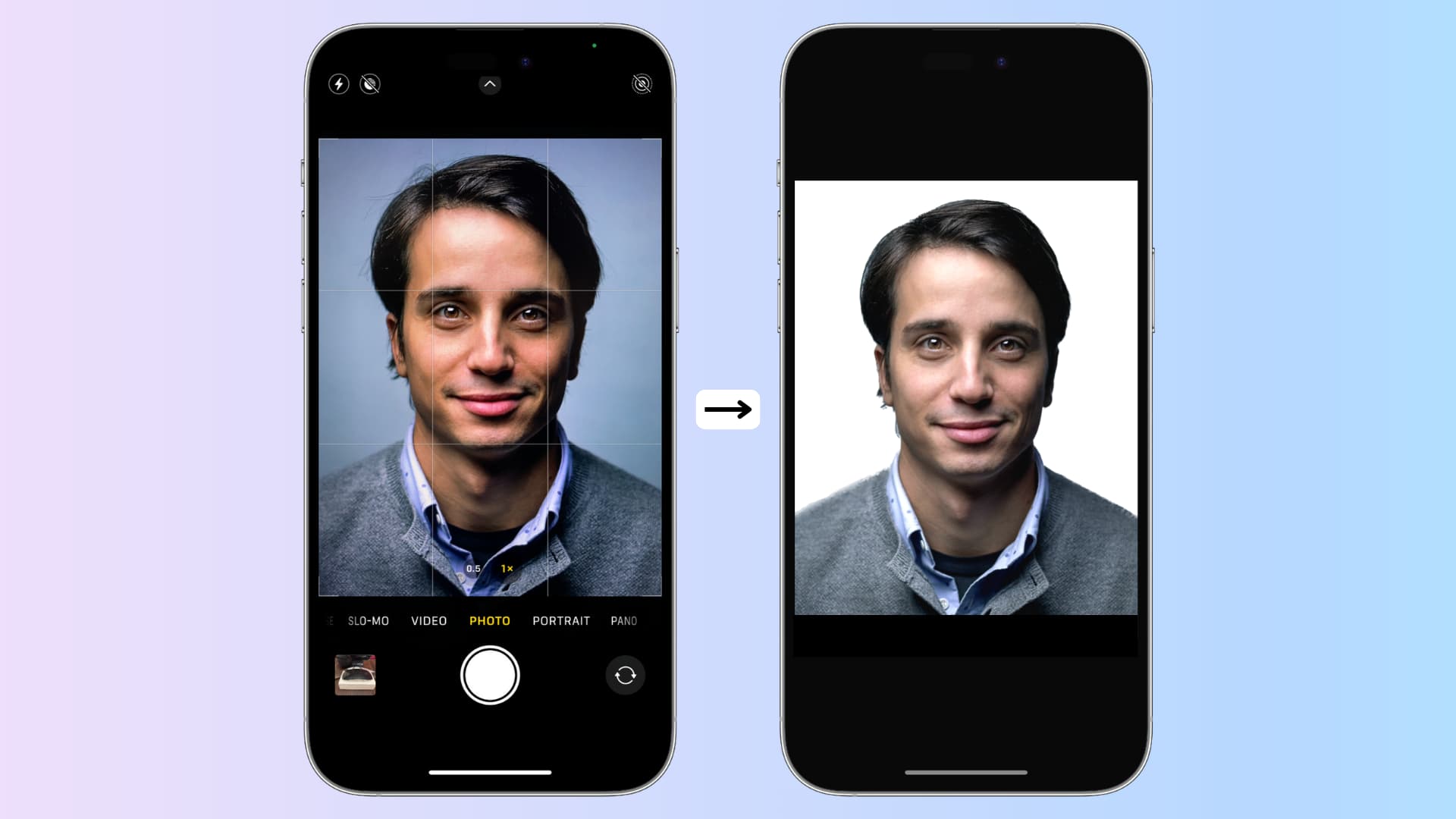
How to Edit and Make a Passport Photo from Your Phone for Free?
The pharmacy trip, the fluorescent light pose, and the $15 or more for two small prints are all part of getting a passport photo.
Nowadays, you can do it all with your smartphone — and if you know what you’re doing, you can take a fully compliant photo without paying a cent.
Whether you’re renewing your passport by mail or handing in your paperwork in person, the process is the same for both — and it’s easier than you’d expect.
Once you’re finished, you’ll have a properly sized and formatted passport photo ready to be uploaded, printed, or submitted — no appointment, no account required.
What You Need to Know?
Before getting started, have these essentials ready. Nothing to buy — most of us already have what we need at home.
- Your smartphone — any recent iPhone or Android with a built-in camera will work
- A white or off-white wall, or a white bedsheet (smooth and wrinkle-free) — this is your background
- Good natural light — a window in a sunny room is ideal
- A free passport photo editing tool — more on this in Step 3
- Something to prop your phone — a stack of books, a shelf, or a small tripod to keep the camera steady and at eye level
That’s really all you need. The following steps explain how to combine these items into a photograph that complies with U.S. standards.
Step 1 — Set Up the Background and Lighting
Background and lighting are two of the most common reasons passport photos get rejected — so they’re worth some extra attention before you even open your camera app.
For the background: Use a plain white or off-white wall. If your walls are cream, light gray, or have any texture or pattern, hang a white bedsheet against the wall instead.
Pull the sheet tight, as wrinkles catch shadows that could flag your photo. Don’t stand in front of any furniture, doorframes, curtains, or anything else that might appear in the corners of the shot.
For lighting: Natural light from a window is best. Stand or sit facing the window so the light falls evenly on your face.
Cloudy days are actually better than sunny ones — direct sunlight creates harsh shadows under your nose and chin. If natural light is limited, place two lamps — one on each side of you — at roughly face level to achieve a similar effect.
⚠️ Note: You must stand at least 2–3 feet away from the background wall. If you’re too close, your shadow will appear behind you in the photo — this is one of the most common reasons for automatic rejection.
Once your setup looks good, take a quick test shot and check the background corners. If you notice any shadows, color cast, or wrinkles, fix them now before you proceed.
Step 2 — Take the Photo With Your Phone
With your backdrop and lighting in place, you’re ready to shoot. A little attention to detail here will save you from having to start over later.
Use your phone’s rear camera — not the front-facing selfie camera. The rear camera delivers a sharper, higher-resolution image, and passport photo generators work best with the clearest possible source file.
If you’re shooting alone, prop your phone on a stack of books or a shelf at eye level, set a self-timer, and position a mirror behind the phone so you can check your framing without walking back and forth.
Frame the photo so that both your head and the tops of your shoulders are visible, with a small amount of space above the crown of your head.
Your face should be centered in the frame. Don’t zoom in — step back instead, keeping the camera at its normal focal length. Four to five feet is a good starting distance.
When you’re ready to shoot, look directly at the camera with a neutral expression — eyes open, mouth closed, looking straight into the lens.
Take at least 10 to 15 shots. Having options matters more than you might expect; small differences in expression, focus, or crop can make one image noticeably better than the rest.
💡 Pro tip: Turn off Portrait Mode and any native beauty or smoothing filters before you shoot. The U.S. State Department strictly prohibits filters or editing tools that alter your appearance — and some phone cameras apply subtle skin smoothing by default without making it obvious.
When you have a good set of shots, review them and choose the one that is the sharpest, has the most even lighting, and shows the most natural expression. That’s the photo you’ll bring into the editor in the next step.
Step 3 — Use a Free Editing Tool to Format Your Photo
After saving your best shot to your camera roll, the next step is to run it through a passport photo editor to crop it, resize it to the correct dimensions, and ensure the background meets official requirements. A dedicated tool will make this much easier than trying to do it manually in a general photo app.
One convenient option is PhotoGov’s digital photo tool. Upload your photo and it automatically reformats the image to meet U.S. passport photo requirements — including cropping, resizing, and background correction — all in one place. There’s no software to download, no account required, and it runs directly in your phone’s browser.
If you’d like to try other free options, several online passport photo editors work well on mobile. Whichever tool you choose, make sure it offers the following:
- Automatic or manual crop to the 2×2 inch U.S. passport size
- Background adjustment to white
- Export as a JPEG file
If a tool adds a watermark to the final image or requires payment to download, skip it — there are plenty of genuinely free options available.
Regardless of which tool you use, the upload process is the same: open the tool in your phone’s browser, tap the upload button, and select your photo from your camera roll.
Most apps will automatically detect your face and suggest a crop. Review the suggested crop carefully before accepting it — the next step explains exactly what to look for.
💡 Pro tip: While you’re deciding which tool to use, run a test with a different photo first. This lets you experiment with cropping and background adjustments without committing your best image to an unfamiliar app.
Step 4 — Verify the U.S. State Department Requirements
Before finalizing your photo, take a moment to compare it against the official specifications. The U.S. State Department has very specific requirements — knowing them in advance is the best way to avoid a rejection after you’ve already submitted your application.
The following are strict requirements from travel.state.gov:
- Size: Printed photos must be 2×2 inches (51×51 mm). For digital submissions, the minimum is 600×600 pixels.
- Background: White or off-white only. No patterns, shadows, or color cast.
- Expression: Neutral expression, both eyes open, mouth closed.
- Head size: Your head must measure between 1 and 1⅜ inches from chin to crown in the final 2×2-inch print.
- Recency: The photo must have been taken within the last six months.
- No glasses: Glasses are not permitted unless you have a signed doctor’s note stating they cannot be removed.
- No editing: Filters or any retouching that alters your appearance is strictly forbidden.
⚠️ Important: The U.S. State Department has explicitly prohibited all “beauty filters” on passport photos. This includes skin smoothing, brightness adjustments that affect your skin tone, and background replacements that don’t reflect the original scene. The background must be naturally white — not digitally substituted.
Hold your edited photo up against this checklist before moving on. If anything looks off — a faint shadow in a corner, a background that reads as gray instead of white, or a crop that cuts too close to the top of your head — fix it now rather than risk a rejection.
Step 5 — Crop and Resize to Exact Dimensions
With your requirements checklist in hand, make the final crop and confirm your photo dimensions are correct. This is where many DIY passport photos fall short — not because the image itself is poor, but because the positioning is slightly off in ways that are easy to miss on a small phone screen.
Most passport photo tools will crop automatically after upload. Don’t accept the result without reviewing it carefully. Zoom in and check for three things specifically:
- Your head is horizontally centered in the frame
- There is a small but visible gap between the top of your head and the top edge of the image
- The bottom of the frame crops to roughly the top of your shoulders
If the tool offers manual adjustments, use them — small tweaks can make a real difference.
The required output for a U.S. passport photo is 2×2 inches for print, or a minimum of 600×600 pixels for digital submission.
Most passport photo tools will handle this automatically once you confirm the crop. What you need to verify is that the final image is a perfect square and that no border or frame has been added — the State Department does not accept photos with decorative or alignment borders.
Pay attention to the head size ratio. In the final 2×2-inch photo, your head should measure between 1 and 1⅜ inches from chin to crown — roughly 50 to 69 percent of the total image height. If your head looks too small or too large in the preview, adjust the crop before downloading.
💡 Pro tip: If your editor shows a full preview before download, zoom into the background corners of the cropped image. The background should be a solid, uniform color — no shadows, no gradients, no patterns from a curtain or wall texture. If you see any of that at 100% zoom, the photo is likely to be flagged.
Once the crop looks right and the preview passes your checklist, go ahead and download your image.
Step 6 — Save and Verify Your File
Downloading the image isn’t quite the last step. Before you consider the photo finished, spend two minutes checking the file itself — not just how the image looks, but whether it meets the technical requirements for submission.
Check the file format first. U.S. passport photo submissions must be in JPEG or JPG format. Most passport photo apps export in JPEG by default, but it’s worth confirming.
Tap the file name and verify it ends in .jpg or .jpeg. On an iPhone, you can check this in the Files app. On Android, long-press the file in your gallery or file manager to see basic file details.
Verify the file size. If you’re uploading a digital photo through the State Department’s online renewal portal, your file must be no smaller than 54 KB and no larger than 10 MB.
If your file is too large, you can compress it using your phone’s built-in photo editor — most have an option to export at reduced quality, which lowers file size without any visible difference in the image.
Finally, decide how you want to store and transfer the file. Save the photo to your camera roll as a backup. If you need to send it to someone helping with your application, use email — not a text message or a messaging app like WhatsApp.
Messaging apps automatically compress images, which can reduce the resolution below the acceptable threshold and result in a blurry or pixelated submission.
💡 Pro tip: Give the file a clear name before submitting — something like passport_photo_2026.jpg — so it’s easy to identify among any other files you upload as part of your application.
Once you’ve confirmed the format, file size, and saved a clean copy, your passport photo is ready to go.
Tips for Getting It Right the First Time
Following the steps above should produce a compliant photo in most situations. If you want to be especially careful and avoid any back-and-forth with the passport office, these additional tips are worth keeping in mind.
Wear the right colors. Avoid white, cream, or light gray tops. Because the background is white, a light-colored shirt can cause your shoulders to blend into the background, which affects how the image is read automatically. Stick with mid-tones or darker solid colors — navy, gray, or maroon are always safe choices.
Keep your hair off your face. There are no strict rules on hairstyle, but your full face must be visible from hairline to chin and ear to ear. If you have a fringe or loose hair that falls across your forehead or cheeks, secure it before shooting.
Shoot in the morning or on a cloudy day. Midday sun coming through a window can create strong shadows even when you’re well positioned. Soft morning or late-afternoon light, or a consistently overcast day, gives you the most even results.
Take more shots than you think you need. It’s tempting to assume you’ll get a usable photo in just a few attempts.
In practice, subtle issues — a slight head tilt, a shadow that only appears at a certain angle, eyes that aren’t quite fully open — are much easier to spot in review than in the moment. Fifteen shots costs nothing and gives you a real choice.
Run a compliance check before you download. Many dedicated passport photo tools include a formatting check as part of the process.
Tools like PhotoGov flag technical issues before submission, saving you from uploading a photo that will be rejected on a technicality.
Double-check if you need a visa photo, not a passport photo. Different countries have different photo requirements — some call for a 35×45 mm size rather than 2×2 inches, and some specify a slightly different head-size ratio. Always verify the requirements for the specific document you’re applying for before you crop and save.
FAQs
Can I take a passport photo with my smartphone?
Yes — and it’s more common than you might think. Modern smartphones have more than enough resolution to produce a compliant passport photo. The key is in the setup: white background, even lighting with no shadows, and a rear camera shot taken at eye level. A dedicated passport photo app handles the crop and formatting from there. The phone itself is rarely the problem — it’s the background and lighting where most DIY attempts fall short.
Does the background need to be stark white?
It should be plain white or off-white, but it doesn’t need to be a perfectly painted studio white. A plain white wall, a smoothed-out white bedsheet, or a piece of white foam board propped behind you will all work. The key is that the background is flat, shadow-free, and free of patterns, objects, or color. Light gray walls sometimes pass, but they’re a risk — when in doubt, use a white sheet.
What size does a passport photo need to be on my phone?
For a U.S. passport, the final image must be 2×2 inches (51×51 mm) if printed, or at least 600×600 pixels if submitted digitally. Your head should occupy 50 to 69 percent of the photo — measuring between 1 inch and 1⅜ inches (25 mm to 35 mm) from chin to crown in the printed version. A passport photo crop tool will handle the resizing automatically once you confirm the crop.
Can I use a selfie as my passport photo?
Technically yes, but with some caution. Front-facing cameras are typically lower resolution than rear cameras, and some wide-angle front lenses can subtly distort your proportions — which can affect biometric compliance. A better approach is to prop your phone on a stand, use the rear camera with a self-timer, and check your framing in a mirror positioned behind the device. The resulting image will be sharper and significantly more likely to be accepted.
Why was my passport photo rejected?
The most common reasons are shadows on the face or background, a background that isn’t plain white, a head size that’s too small or too large within the frame, and the use of filters or retouching that alters your appearance. Blurry or pixelated photos and incorrect file formats are also frequently flagged. If your photo was rejected, the State Department will generally send a letter or email explaining the specific reason — use that feedback to address the exact issue rather than starting the entire process from scratch.
Conclusion
Taking and formatting a passport photo from your phone is genuinely straightforward once you know what’s required.
A solid white background, soft even lighting, a steady rear camera shot, and a free editing app to handle the cropping and formatting — that’s everything you need to produce a photo that meets U.S. State Department standards without visiting a studio or paying at a drugstore counter.
The steps in this guide apply whether you’re renewing a passport, submitting a visa application, or preparing a photo for any other important document.
Follow them in order, take your time with the background and lighting setup, and check your photo against the official requirements before submitting. Most rejections are avoidable — and now you know exactly what to look for.
If you’d prefer to skip the manual editing, PhotoGov’s digital photo tool can handle the formatting automatically — upload your photo and receive a properly sized, compliance-ready passport photo in minutes, with no account required.
