

PDFs are great for maintaining formatting. However, PDFs are not designed for easy image extraction as you cannot edit the PDF without the correct tool.
That’s why so many people struggle with this task.

In this article, we’ll show you how to copy image from PDF. We’ll first discuss how to copy a single image. After that, we’ll extract all photos from the PDF. The tool we’ll be using is UPDF. It’s an excellent PDF editor with many advanced features.
Let’s start to check how to use this tool to copy image from PDF.
How Do You Copy One Image from a PDF without Losing Quality?
Too many tools compress, distort, or blur the image when extracting the images from a PDF, leaving you with something less than usable. UPDF is a free PDF editor to copy image from a PDF. It lets you copy images easily while keeping them sharp and clear.
Mostly, people just need to copy selected images from the PDF. For example, let’s say you are working on a product catalog. You need just one high-quality product photo from the PDF for your presentation. UPDF allows you to get it in seconds.
Step-by-Step: Single Copy Image From PDF
Step 1: Download the latest version of UPDF and Launch it on your computer. Open the PDF in UPDF.
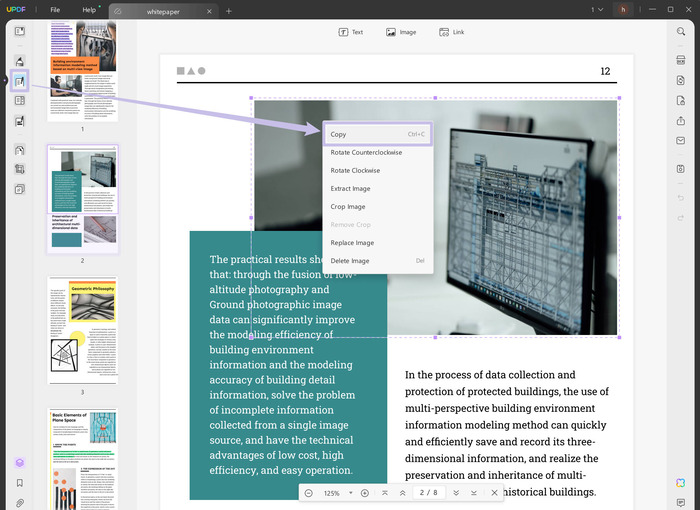
Step 2: Click “Edit PDF” in the left toolbar to enable selection.
Step 3: Right-click on the image you need. A selection box will appear around it. A menu will pop up. Select “Copy” to grab the image.
Step 4: Open Word, PowerPoint, Photoshop, or another application. Right-click and paste the image here.
Now, let’s get to the second method. We’ll now show you how to extract all images from the PDF.
How to Copy All Images from PDF?
Pulling all the images from the PDF one-on-one would be a nightmare.
Luckily, UPDF makes this easy. Some tools lock this feature behind paywalls. However, UPDF lets you extract images for free with just a few clicks.
Let’s say you are reading through an e-magazine. You can extract all the visuals to create a mood board. Rather than having to save them individually, you can download all the images with UPDF.
Step-by-Step: How to Grab All Images from a PDF
Step 1: Open your PDF in UPDF. Then, click on the “Edit PDF” option in the left toolbar.
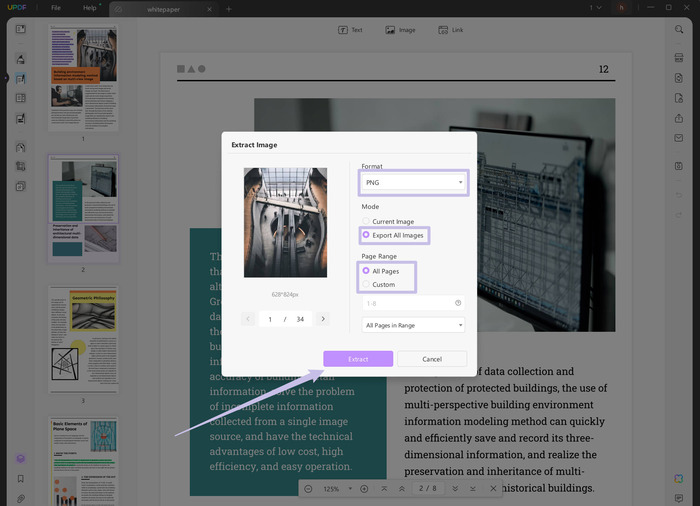
Step 2: Single-click on the image, and multiple options appear above it. Select the “Extract image” option.

Step 3: When the Export settings appear, select “Export All Images” option..
Step 4: Click the format box and choose JPG, PNG, or another format from the dropdown.
Step 5: To export images from specific pages, click Custom and select the page range. Then click “Export.”
Step 6: Select the destination folder to save the images. Then, save the photos with UPDF.
Now, you know how to use UPDF to extract one image and all images from PDF. But you may know why choose UPDF when there are so many other tools to help you do these tasks.
Why Choose UPDF Over Other Tools?
This is when most people will have the same question in mind. Why choose UPDF over other tools? It’s because:
- Completely Free: Unlike many tools that give image extraction in the paid version, UPDF offers this feature at no cost.
- No Quality Degradation: UPDF leaves the image quality unchanged.
- Advanced Features in Pro Version: UPDF Pro includes OCR for scanned PDFs, unlocking protected PDFs, complete PDF editing, form creation, and even an AI-powered PDF assistant.
Download UPDF Now – it’s FREE to try! If you need pro-level features, UPDF keeps its prices competitive. You can upgrade to UPDF Pro here!
Now, there’s a common issue! You copy an image from a PDF. However, what passes isn’t the visual you expected but a pitch-black void. Let’s solve it.
Why Does the Image Become Black When Copied from a PDF?
This is a common problem—especially for anyone using Adobe Acrobat to read PDFs. But why does this happen, and how can it be fixed? Let’s see!
The Hidden Culprits Behind the Black Image Glitch
- Some PDFs use non-standard image formats that Acrobat has difficulty interpreting correctly.
- Software glitches, old software, or display settings may contribute to the failure to handle the image properly.
- Some PDFs are embedded with certain restrictions that prohibit copying or changing images.
Now, let’s see how to fix them with four standard methods.
Fix 1: Change to UPDF for Easy Copying
If Acrobat is giving you a headache, it’s time to switch to a more competent tool. UPDF handles image extractions far more efficiently. It doesn’t stumble over image encoding conflicts. You can smoothly extract even complex or protected images. So, let UPDF do the work for you!
Fix 2: Copy with Formatting
Sometimes, the problem isn’t the image itself but how it’s being extracted. A simple “Copy” command might not transfer the image in its full fidelity. Instead, try this:
- In the reader mode, right-click the selected image and choose “Copy with Formatting.”
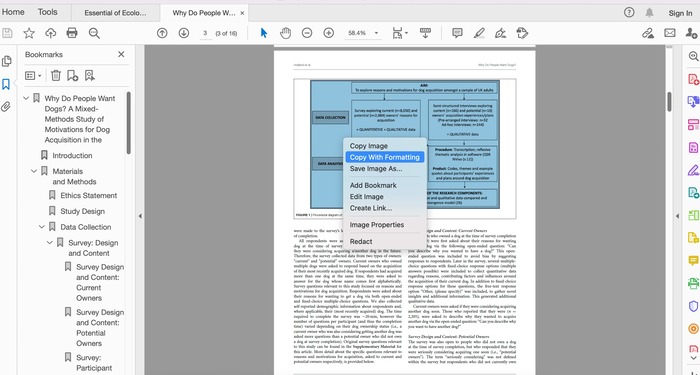
Copy with Formatting ensures the entire image structure and its embedded attributes transfer correctly.
Fix 3: Edit Text and Images
You can switch to an edit mode with Adobe Acrobat Pro (versus the free Reader). This mode evades the common copying restrictions.
- From the menu, select Edit > Edit Text and Images.
- Attempt to select the image and copy it from this specialized editor.
This method enables Acrobat to understand PDFs better through its image layers.
Fix 4: Save Image as TIFF
If nothing else works, forget about copying and pasting. Simply take a direct extract. Don’t try to copy the image from within the PDF; instead, do this:
- In the reader mode, Right-click on the image and choose “Save Image As.”
- Then, select TIFF as your preferred format.
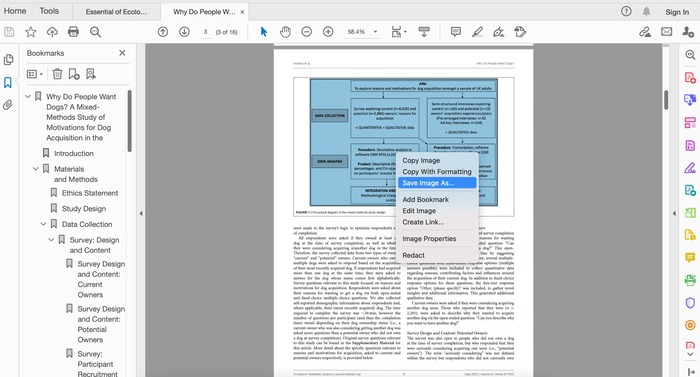
TIFF files retain the maximum amount of image detail and transparency. They are ideal for preserving visual accuracy.
FAQS
Q1. How Do you Copy an Image from a Scanned PDF?
To extract an image from a scanned PDF, open it with UPDF. Go to “OCR” > select language > perform OCR. Then, once the OCRed PDF opens, you can go to “Edit PDF”, right click on the image, select “Copy” to copy the image from the scanned PDF.
Q2. How Do I Copy an Image from a Protected PDF?
If you have a password-protected PDF, you must first unlock it using the correct credentials. Open the PDF with UPDF. If it has the open password, enter it to open it. Then, click on the “Protect Using Password” > “Remove security” > “Remove” > Enter the password > save the PDF without password. The PDF without password will open automatically. Go to “Edit PDF” > right click to select the image > copy.
Final Words
You now know how to copy image from PDF. Unlike traditional PDF readers, UPDF effortlessly extracts images without distorting the resolution. It streamlines the process, saving you time, effort, and frustration when working with visual content.
Download UPDF now and try it yourself.
In case you have a problem with the images becoming black when copied from PDF, we listed all the reasons and fixes here.
