

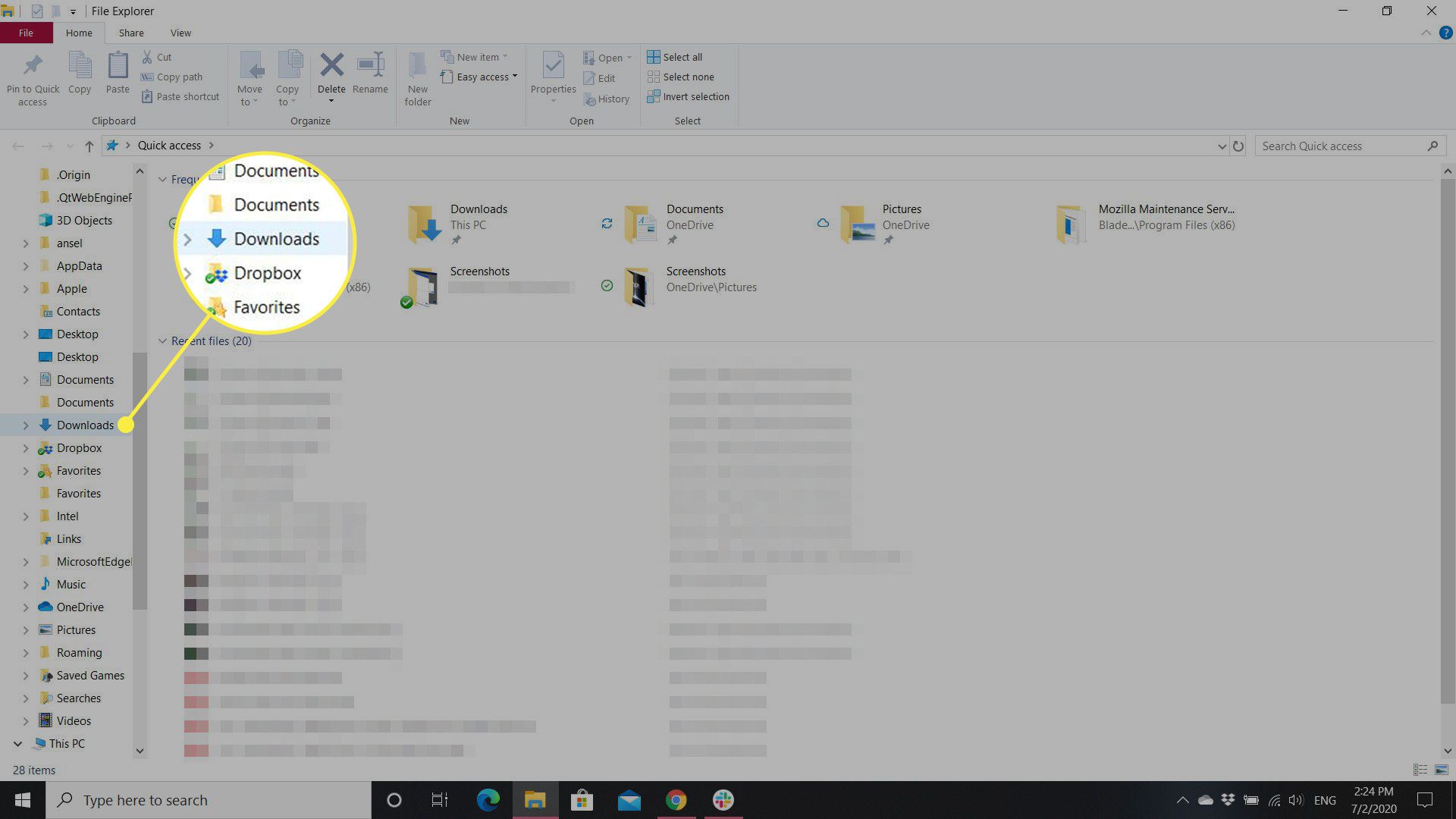
The Downloads folder is one of the most frequently used folders on our computer. All the files we downloaded from the browsers, chat apps, email attachments, drives, etc. are stored here. However, over time, more and more files are accumulated in this folder and make it difficult to locate files.
It also takes up a lot of valuable space. In this article, I’ll tell you how to organize your messy Download folder through several practical ways.
Part 1: Why your Downloads folder gets so messy?
There are several reasons why the Downloads folder tends to get messy over time:
All files are saved there by default. On computer, most files are downloaded to the Downloads folder by default unless you manually choose a different location. They are often automatically named “downloads (1)”, “downloads (2)”, “image (1)”, “image (2)”, and so on, making them difficult to organize.
Duplicate downloads. If you accidentally click on the “Download” or “Save as” buttons multiple times, the same file will be downloaded multiple times, creating a lot of unnecessary duplicate files with similar names in the folder.
Temporary or one-time files are not deleted. Some files (such as archive files, installation packages, etc.) are downloaded to the Download folder. You only need to use them once but didn’t delete them manually after use. Overtime, more and more files will accumulate there.
No folder structure. When downloading files, you may simply let them pile up in one place without creating any subfolders or categories. Over time, the folder will get messy.
Part 2: How to organize your Downloads folder?
Here are some ways to help you clean up and organize your Downloads folder.
1. Remove duplicate files
The first thing you should do is clean up duplicate files. You may accidentally downloaded the same files multiple times. Since they often have similar file names, manually finding and removing them must be time-consuming and error-prone. To make the process easier and more accurate, you can use a professional duplicate file finder – Cisdem Duplicate Finder.
This tool scans your Downloads folder (or other folders/drives you choose) and finds duplicate archives, documents, photos, videos, audio files, etc. in it. What makes it better than manual identification is that it identifies duplicates based on file content, regardless of file names.
After scanning, it automatically groups the detected duplicates for you to preview. Then, it selects all but one file from each group for deletion, helping you quickly clean up your Downloads folder and free up storage space.
Step 1. Download and install Cisdem Duplicate Finder on your computer.
Step 2. Open it. Click the plus icon. Select the Download folder. Click Open. Click Scan.
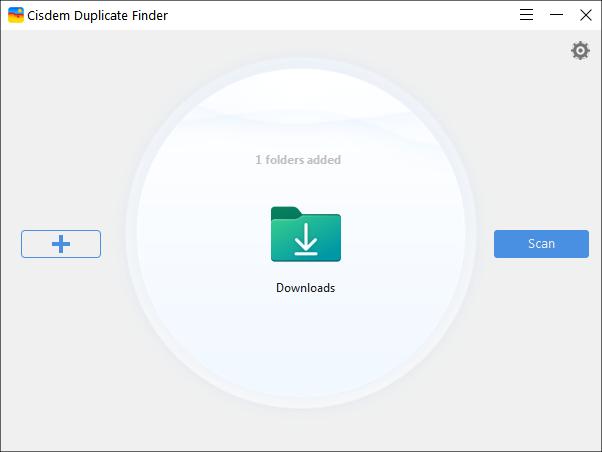
Step 3. Wait for it to complete the scan. View the detected duplicate files in the result window.
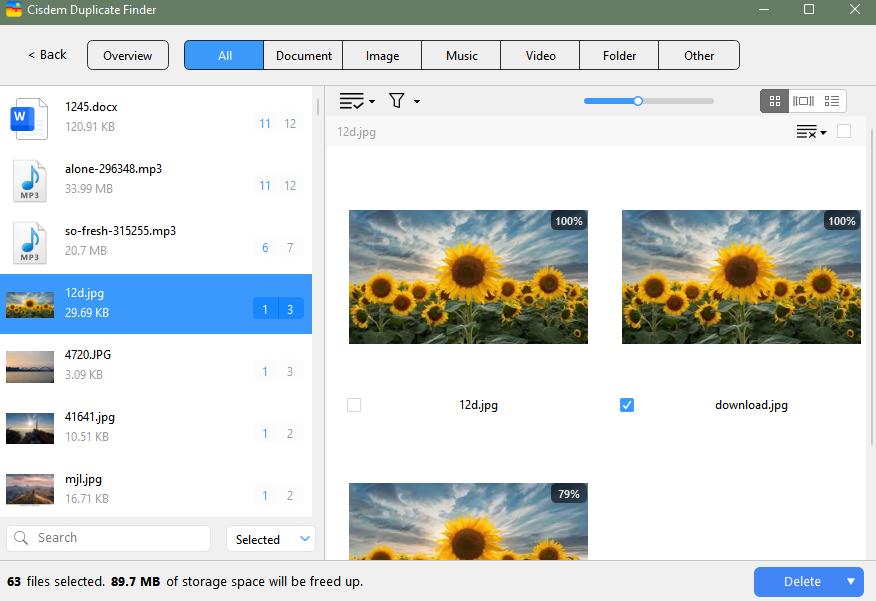
It can also detect similar images. For example, if you’ve downloaded the same image in different formats or resolutions to the Downloads folder, the tool will identify them and display their similarity.
There are 3 preview modes for easy comparison. You can switch to the Info mode in the upper right corner to view the file details.
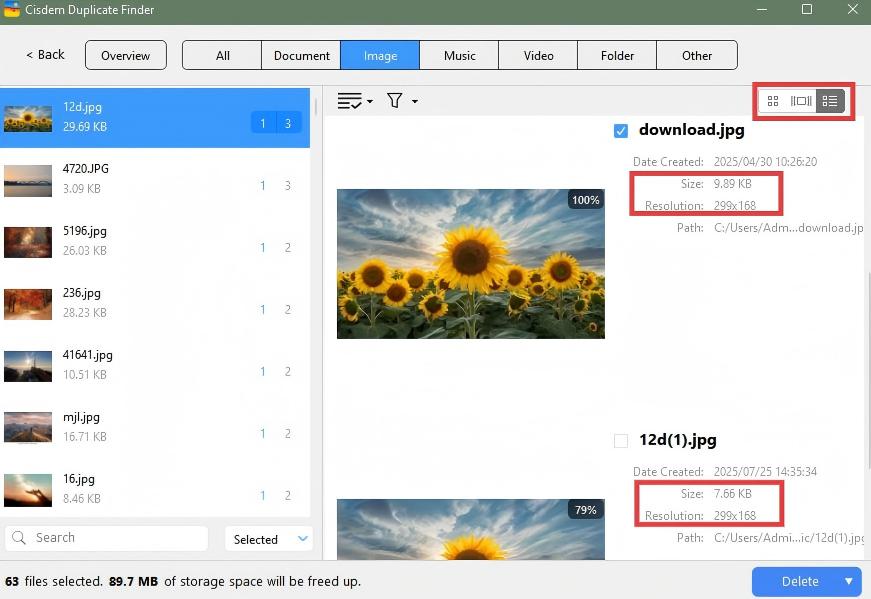
Step 4. It has already select duplicate files for you to remove. You can also use the selection rules. Or manually select.
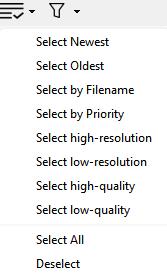
Step 5. Click Delete to remove all the duplicates from your Downloads folder.
After deleting these duplicates, you will find that your Downloads folders look much cleaner.
It is recommended to use the duplicate file finder regularly on your computer, such as once a month.
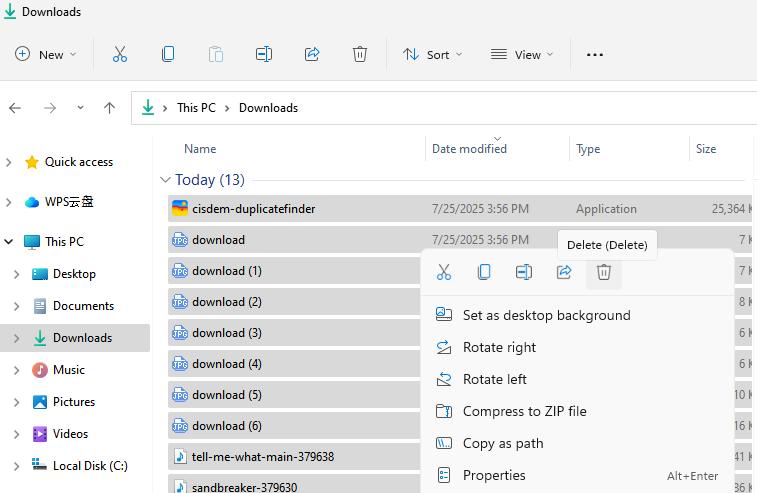
2. Delete useless files
Cleaning up those files that are useless also helps organize your Downloads folder. For example:
- Software install After the installation is completed, the application installers or update installers is useless. You can delete them safely.
- Temporarily downloaded images, audio files, videos, etc. Some files downloaded from the Internet are only needed temporarily. For instance, content editors may download a lot of media assets for a single project. But these assets are no longer useful once the project is completed.
- Some documents are downloaded for one-time viewing. Once you have reviewed the file content, they become useless. These files can accumulate a lot and clutter your Downloads folder.
3. Rename files for easy identification
Many files in the Downloads folder are automatically named in simple and similar ways. You’ll find it difficult to identify and organize them later.
To organize your Downloads folder, it’s a good idea to rename files in a clear format. For example, based on the file content and date , you can rename the file “image (1)” to “2026 spring travel-1”.
To rename a file on Windows, click on the file. Press the F2 key in the keyboard. Then type in the new name.
To rename a file on Mac, right-click on the file. Choose Rename. Then type in the new name.
4. Categorize files by type
To organize Downloads folder, you can also try to categorize files in it by file type.
Most files in the Downloads folder fall into a few common categories, such as:
- Pictures: .jpeg, .jpg, .png
- Videos: mp4, .mov
- Audio: .mp3, .wav
- Documents: .pdf, .docx, .txt
- Installers: .exe, .dmg
- Archives: .zip, .rar
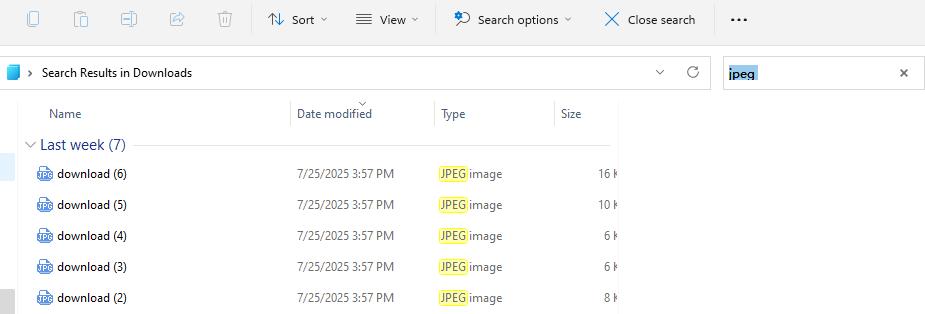
The computer’s built-in file manager (Windows File Explorer or Mac Finder) can help you easily do this. First, use the search feature to filter files by extension (like .jpeg). Then, move all files of the same type into the appropriate subfolder (like Images).
5. Create subfolders
Another effective way to organize the Downloads folder is to create subfolders. You can create subfolders according to your daily usage habits. For example, based on projects, time, or file sources, etc. A good folder structure also allows you to quickly find the files you need.
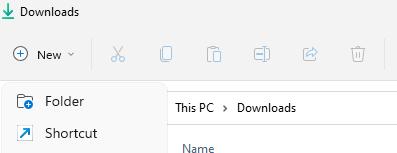
To create a subfolder, open the Downloads folder on the computer. Click on New > Folder in the toolbar. Then enter the folder name. Press the Enter key.
Conclusion
This article introduces 5 effective ways to organize the Downloads folder on a computer, including eliminating duplicates and unnecessary files, renaming files for easy identification, categorizing files, and creating subfolders.
What’s more, to keep your Downloads folder always organized, it’s also recommended to clean it up regularly, change the default download location, and develop the habit of categorizing files right after downloading them.
