

AirTag is a handy device for tracking items like keys, wallets, backpacks, and other belongings. With this device, you can protect your belongings as easily as winning while playing at https://nationalcasino.com/.
Let’s explore how to connect an AirTag to an iPhone and use it to find lost items. First, let’s understand why this gadget is useful.
What Is Apple AirTag Used For?
AirTag is a small Bluetooth tracker from Apple designed to help you locate lost items through the Find My app on your iPhone.
Key Uses for AirTag:
- Finding keys, wallets, or backpacks: Attach an AirTag to a keychain or place it in your wallet. If the item is lost, you can locate it using the Find My app or make the AirTag play a sound.
- Tracking luggage during travel: AirTag helps monitor your suitcase’s location at the airport. If your luggage is lost, enable Lost Mode to receive a notification when it appears in the Find My network.
- Tracking your car or bike: Hide an AirTag in your car or attach it under your bike seat. If your vehicle is stolen, you can track its movement via the Find My network.
- Protecting gadgets and accessories: Place an AirTag in your headphone case, camera bag, or other valuable device. If lost, you can quickly locate it using Find My.
- Keeping track of kids’ belongings: Attach an AirTag to your child’s backpack to avoid losing it in crowded places. If the backpack is forgotten, AirTag will help you find it quickly.
- Finding pets: Attach an AirTag to your dog’s or cat’s collar. If your pet runs away, you can see their location in the Find My app.
- Tracking documents and important items: Place an AirTag in a folder with passports or important documents to ensure you don’t forget them before a trip.
How to Connect AirTag to iPhone?
Steps:
- Enable Bluetooth, Wi-Fi, and Find My on your iPhone.
- Open Settings → Privacy & Security → Location Services and ensure they are turned on.
- Remove the AirTag from its packaging and activate it:
- Remove the protective film and plastic tab to start the battery.
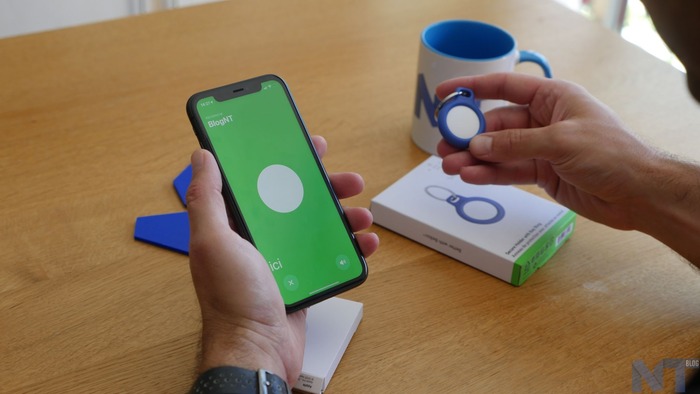
- Bring the AirTag close to your iPhone (it must be running iOS 14.5 or later).
- A pop-up will appear on the screen—tap Connect.
- Choose a name for your AirTag (e.g., “Keys” or “Backpack”) or create a custom one.
- Link the AirTag to your Apple ID (for theft protection).
- Wait for the setup to complete and tap Done.
Your AirTag is now linked to your iPhone and ready to use.
How to Find a Lost Item with AirTag?
Using Find My
- Open the Find My app on your iPhone.
- Go to the Items tab.
- Select your AirTag from the list.
- Available features:
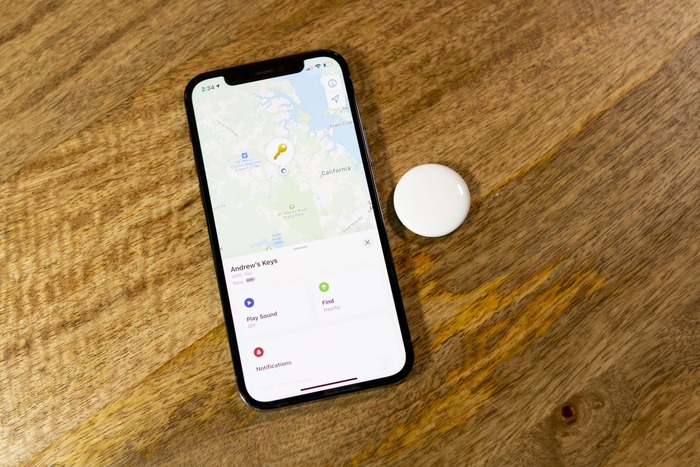
- Play Sound: If the AirTag is nearby, it will emit a sound.
- Directions: If the AirTag is far away, you can see its location on a map.
- Find Nearby: If the AirTag is close, the app will show the signal strength.
Enabling Lost Mode
If your AirTag is lost, enable Lost Mode:
- In the Find My app, select your AirTag and tap Lost Mode.
- Enter a contact number so the finder can reach you.
- If someone finds your AirTag, they can scan it using an iPhone or Android device to see your contact details.
How to Replace the AirTag Battery?
AirTag uses a standard CR2032 battery, which lasts about a year.
Steps to Replace the Battery:
- Press and rotate the AirTag cover counterclockwise.
- Remove the cover and take out the old battery.
- Insert a new CR2032 battery.
- Close the cover by rotating it clockwise until it clicks.
Setting up an AirTag with your iPhone is simple—just bring it close to your device and follow the instructions. Use the Find My app to locate lost items, enable Lost Mode, and even replace the battery when needed.
