

Creating a 3D model traditionally requires learning how to manipulate vertices, edges and surfaces. These skills remain important, but AI-assisted tools now offer beginners another way to start: describing an object in words and generating an initial model.
This approach can help creators explore game props, product concepts, digital artwork and printable decorations before they have advanced modelling skills. However, the first generated result is rarely the finished asset. It still needs to be inspected, tested and often edited.
The following workflow explains how to move from a basic text prompt to a more usable 3D model.
Step 1: Decide What the Model Is For
Begin by defining the model’s purpose. A decorative object for a digital scene has different requirements from a moving game character or a part intended for 3D printing.
Consider:
- Where the model will be used
- How closely people will view it
- Whether it needs to move
- Whether exact dimensions matter
- Which file format the next application accepts
- How much geometric detail is appropriate
A rough model may be sufficient for testing the layout of a game scene. A printable object, by contrast, must have suitable dimensions, wall thickness and closed geometry.
Knowing the intended use gives you a standard for judging the generated result.
Step 2: Write a Clear Prompt
A useful prompt describes the object in a logical order. Start with the main subject, then add its important shape, components, material and visual style.
For example:
A small wooden treasure chest with a rounded lid, iron corner brackets, a central lock and a simple low-poly fantasy game style.
This works better than a vague request such as “make a cool treasure chest” because it identifies the object’s structure and intended appearance.
Useful prompt elements include:
- Object type
- Overall shape
- Important components
- Material
- Style
- Level of detail
- Symmetry or proportions
- Intended use
Avoid filling the prompt with unnecessary background descriptions. Information about weather, camera effects or scenery may be useful for a 2D image but may confuse a system that needs to generate one isolated object.
Step 3: Generate the First Version
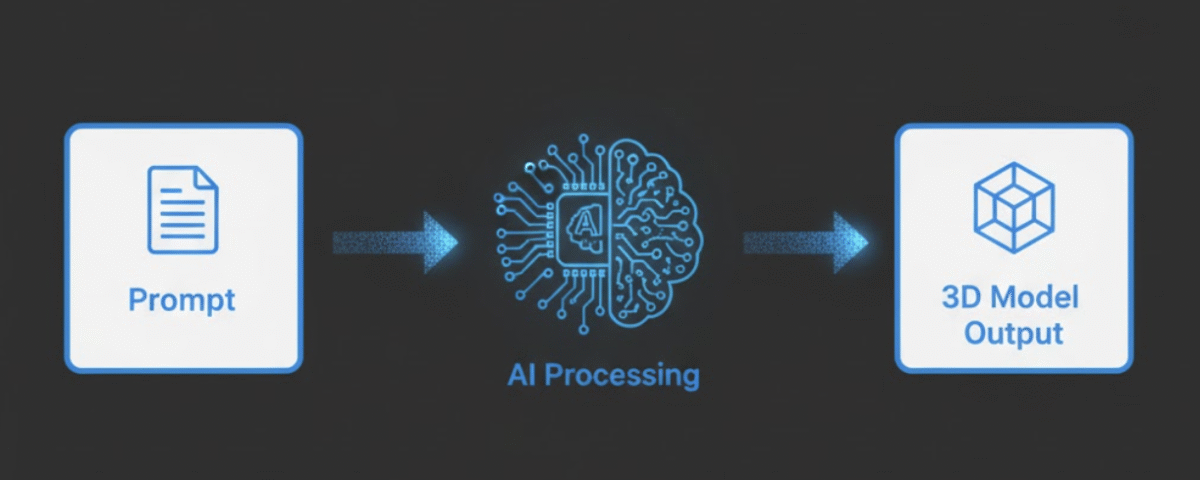
A beginner can use a text to 3D AI generator to turn the written description into an initial model. The first output should be treated as a visual prototype rather than a finished production asset.
Rotate the model and compare it with the prompt. Check whether the major components are present and whether the object remains recognisable from the front, sides and back.
At this stage, focus on the overall shape. Small surface details are less important if the silhouette or proportions are wrong.
If the model is not close to the intended design, revise the prompt before spending time on manual corrections.
Step 4: Refine the Prompt
Change one or two details at a time so you can understand how the wording affects the result.
If the treasure chest is too realistic, add “stylised low-poly” or describe broader, simpler shapes. If the lock is missing, move that feature earlier in the prompt. If the model contains unwanted objects, clarify that it should be “a single isolated object.”
Useful corrections might include:
- Wider base
- Shorter handle
- Symmetrical design
- Separate visible limbs
- Flat bottom
- No background or platform
- Simple geometry
- Neutral pose
Text prompting is effective for broad visual direction, but it is not a precise replacement for computer-aided design. Do not rely on a prompt alone when an object must meet exact mechanical measurements.
Step 5: Inspect the Geometry
A model can look convincing in a shaded preview while containing technical problems.
Examine it from every angle and look for:
- Holes or missing surfaces
- Disconnected pieces
- Intersecting components
- Distorted details
- Uneven polygon density
- Unnecessary internal geometry
- An unstable or uneven base
Turn on a wireframe view if one is available. The mesh should use its polygons where they contribute to the visible form. A model with many polygons is not automatically better, especially when it will be used on a mobile device or repeated throughout a scene.
Characters and other animated models require additional attention around joints. Poor geometry near the shoulders, elbows, hips and knees may deform badly during movement.
Step 6: Review Textures and Materials
Generated models may include colours and surface details, but these should also be checked.
Look for stretched textures, visible seams, inconsistent detail and lighting that appears permanently painted onto the surface. Text, logos and symbols may be mirrored or misspelled.
Test the model under different lighting if possible. A material that looks metallic in one preview may appear like plastic in another environment.
Important assets may need manual texture painting or rebuilt materials. Understanding basic properties such as base colour, roughness, metallic and normal information will make these corrections easier.
Step 7: Edit the Model
Some problems are better fixed in conventional 3D software than through repeated generation.
For the treasure chest example, check whether the lid and body are fused together. If the chest needs to open, separate or rebuild the lid, place its pivot at the hinge, and test the movement before export.
Basic editing tasks may include:
- Removing unwanted parts
- Filling holes
- Smoothing or simplifying surfaces
- Correcting proportions
- Separating movable components
- Adjusting the model’s origin
- Setting the correct scale
- Repairing surface normals
This stage is where the creator gains direct control over the result. AI may provide the starting geometry, but manual editing determines whether the asset meets the needs of the project.
For objects requiring exact measurements or functional moving parts, rebuilding sections with appropriate modelling or CAD tools may be necessary.
Step 8: Choose the Right Export Format
The correct format depends on what you plan to do next.
OBJ is widely supported for static geometry but may store materials and textures separately. FBX is commonly used for game assets and animation. STL focuses primarily on surface geometry and is frequently used in 3D-printing workflows.
GLB packages a glTF asset into a single binary file, which can make it convenient for web-based sharing and real-time applications. The Khronos Group’s glTF overview provides more information about the format and its role in delivering 3D content.
Before exporting, confirm that the destination software supports the chosen format and that textures, scale and animation data are included as expected.
Step 9: Test the Model in Its Final Environment
A successful export does not guarantee that the model is ready to use.
Import it into the target game engine, design application, viewer or slicing program. Check scale, orientation, materials and performance in the environment where the asset will actually appear.
For game assets, test the model within a representative scene rather than an empty preview. For printing, inspect the object in slicing software for unsupported sections, thin walls, open geometry and first-layer contact.
Any problems discovered during testing should lead to another round of editing and validation.
Use AI as a Starting Point
Text-based 3D generation makes early visualisation more accessible, but it does not remove the need for modelling knowledge or human judgement.
The most reliable workflow combines rapid generation with careful inspection, manual editing and testing. Beginners can start with a prompt, but they should evaluate the result according to its intended purpose rather than accepting the first attractive preview.
A generated model becomes useful only when it works beyond the generation screen.
